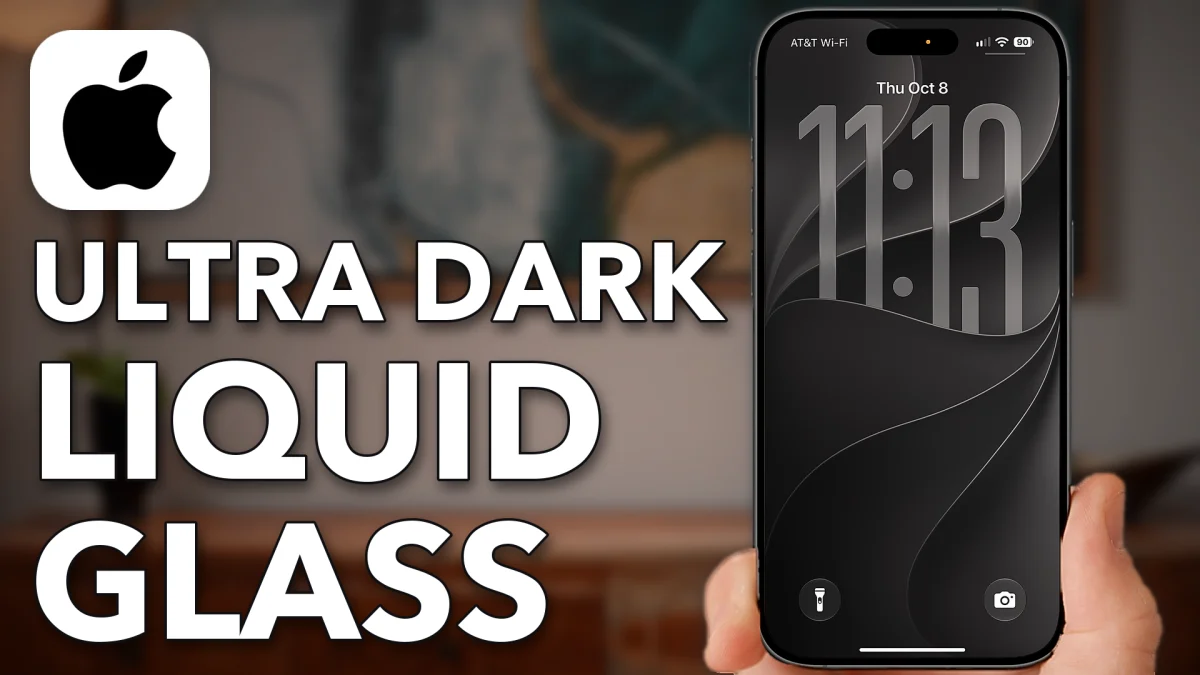
Four changes turn an iPhone on iOS 27 almost completely black: a black Lock Screen, dark Home Screen icons, dark mode with Liquid Glass turned all the way down, and a few accessibility switches. Together they make the whole phone look dark and sleek, and the text easier to read.
Black out the Lock Screen
The dark look starts with the wallpaper. The black option lives in the iOS 27 wallpaper set, so update to iOS 27 first if you haven’t already.
1. Add a new Lock Screen
Swipe down from the top left to see your Lock Screen, then press and hold on it. Swipe left until you reach Add New and tap the plus button. Scroll down to the iOS 27 section and tap the Liquid Glass iOS 27 wallpaper, the one all the way to the right.
2. Switch it to Color and pick black
Swipe left through the styles, past Dynamic and iOS 27, until the label at the bottom says Color. Keep swiping until you see it; the next step depends on it. Tap the small color icon to the top right of where it says Add Widgets. Tap the black color at the bottom right and push the slider all the way over to black.
3. Size the clock and save
Tap out of the color picker. You can make the clock bigger or smaller here, whichever you prefer. Tap Add at the top right, then Set as Wallpaper Pair so the Home Screen uses it too. Tap the new wallpaper and swipe up to see it.
- Tap
- Hold the Lock Screen
- Add New
 Plus
Plus- iOS 27
- Color
- Black
- Add
- Set as Wallpaper Pair
Darken your Home Screen
A black wallpaper still leaves bright app icons on top of it. The Home Screen has its own dark setting for those.
1. Turn the icons dark
Press and hold on any app; it doesn’t matter which one. Tap Edit Home Screen, then the small paintbrush at the top left. Tap Customize, then Dark at the bottom left.
2. Make the icons bigger
Tap the two squares at the top right. This makes the app icons a bit bigger.
3. Dim the background
Tap the small sun icon at the top left. Each tap makes the background a little lighter or a little darker, so keep tapping until it is dark.
- Tap
- Hold an app
 Edit Home Screen
 Paintbrush
 Customize
 Dark
Dark- Bigger Icons
 Sun
Sun
Make your apps go dark
Open an app like Settings and you will see it is still light. Dark mode fixes the apps, and turning Liquid Glass down takes them from dark to ultra dark.
1. Turn on dark mode
Open Settings and scroll down. On iOS 27 the appearance options are no longer inside Display & Brightness; if you open it, tap the back arrow. Tap Appearance in the main list, then tap Dark. The phone switches to dark mode straight away.
2. Turn Liquid Glass all the way down
Tap Liquid Glass. The slider runs from more transparent, which is the Liquid Glass look you can see in the search bar, to the opposite end. For ultra dark mode, slide it all the way to the right. That removes the Liquid Glass effect and makes everything super dark.
- Tap
 Settings
 Display & Brightness
 Appearance
- Dark
- Liquid Glass
- Slide All The Way Right
Make text easier to read
The last part makes everything easier to read so it really stands out against the black. These switches are in Accessibility.
1. Open Display & Text Size
Tap the back arrow until you are at the start of Settings. Scroll down, tap Accessibility, then Display & Text Size.
2. Turn on four switches
Turn on Show Borders, which makes things stand out a little better, depending on the app you are in. Turn on Bold Text, which makes all the text bold. Increase Contrast is optional; switch it on if you want everything a bit easier to read. Finally, turn on Reduce Transparency.
- Tap
 Accessibility
 Display & Text Size
- Show Borders
- Bold Text
- Increase Contrast
- Reduce Transparency
With all of these on, swipe through your phone: the wallpaper, the Home Screen and every app you open now sit on a black background.
Stock footage: Pexels.
Watch this on YouTube and ask your question in the comments.