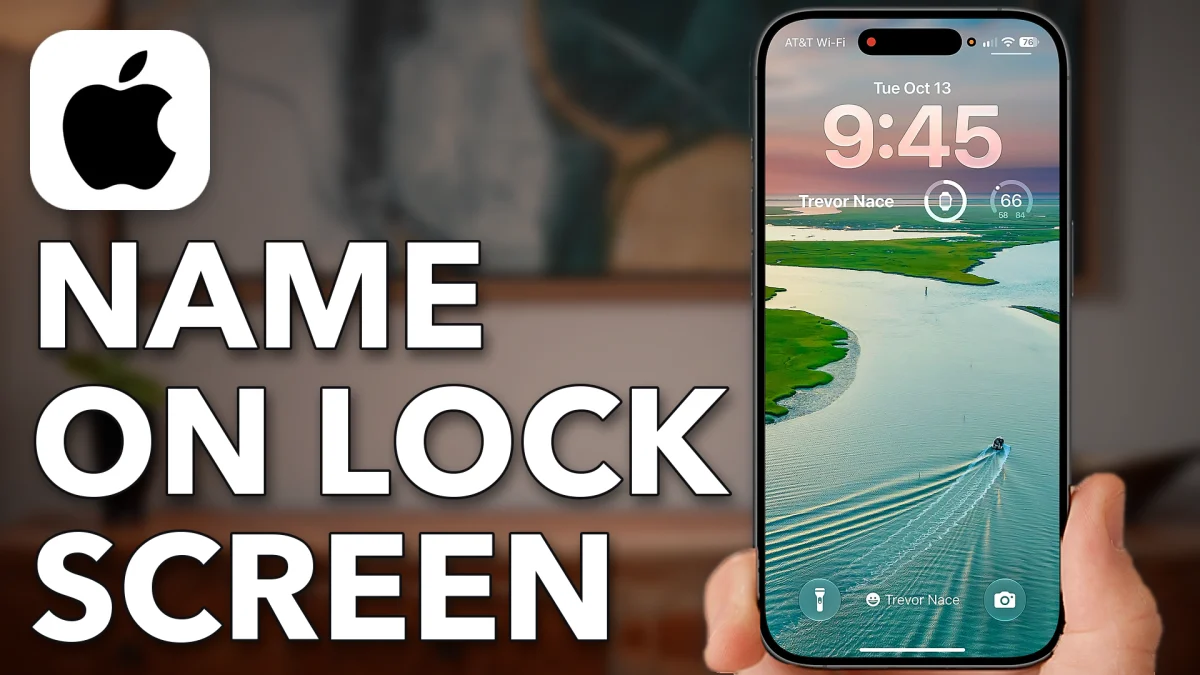
An iPhone can show your name on the Lock Screen in two places: at the bottom, next to a small icon, and at the top above the clock. The bottom one is a Focus mode named after you, the top one is a free text widget, and neither has to silence anything. Set up one or both in a few minutes.
Add A Name At The Bottom
The name at the bottom of the Lock Screen is really the name of the Focus mode that is switched on. Make a Focus called your name and turn it on; it does not have to block a single notification.
1. Make a Focus with your name
Open Settings, scroll down and tap Focus. Tap the plus at the top right, tap Custom, then tap Name and type your name. Pick a colour and an icon underneath, anything from a smiley face to the flame, then tap Next and Customize Focus.
2. Leave the Focus doing nothing
The Customize screen offers to silence people and apps. You can skip all of it: a Focus with nothing set is just a label, not Do Not Disturb, and every notification still comes through. You can always come back into Settings and change this later.
3. Switch it on
Swipe down from the top right to open Control Center and tap the Focus button; it may already show a name, or just say Focus. Tap the Focus you just made. Now swipe down from the top left and your name sits at the bottom of the Lock Screen.
- Tap
 Settings
 Focus
Focus Plus
Plus Custom
- Name
- Green
- Fire
- Next
- Customize Focus
- [Your name]
- Settings
Add Your Name At The Top
iOS has no built-in widget that shows plain text, so the name at the top comes from a free App Store app that turns any text into a widget.
1. Install a text widget app
Open the App Store, tap Search and search for text widget. Any of the text widget apps will do; the one in the video is Any Text Widgets. Download it and tap Open.
2. Type your name
Tap Widget 1 at the top and enter your name. The palette icon at the top right changes the background colour, the text, a background image or gradient, the font size and the alignment. Keep in mind the Lock Screen’s own text colour can override what you choose here. Tap Done at the top right.
- Tap
 App Store
 Search
- Any Text Widgets
 Open
Open- Widget 1
 Palette
- Text
- Done
Show The Name At The Top
The widget exists now, but it still has to be placed on the Lock Screen itself.
1. Open the Lock Screen editor
Swipe down from the top left to get to the Lock Screen, press and hold on it, then tap Customize at the bottom. The widget area appears under the clock. If your widgets sit at the bottom of the screen instead, push them up to the top with your finger.
2. Add the text widget
Tap the widget area, scroll down the list of apps to the text widget app and tap the widget you just made. Tap the X to close the picker, tap away from the clock, then tap Done at the top right. Your name now shows at the top, and at the bottom too if the Focus is on.
3. Change the colour
Press and hold the Lock Screen again, tap Customize, then tap Font & Color. Pick white, blue or any of the presets, or tap the rainbow circle for any colour you like, black included.
- Tap
- Press And Hold
- Customize
- Widgets
- TextWidget
- [Your name]
- Done
- Press And Hold
- Customize
- Font & Color
- Blue
- Rainbow
Watch this on YouTube and ask your question in the comments.