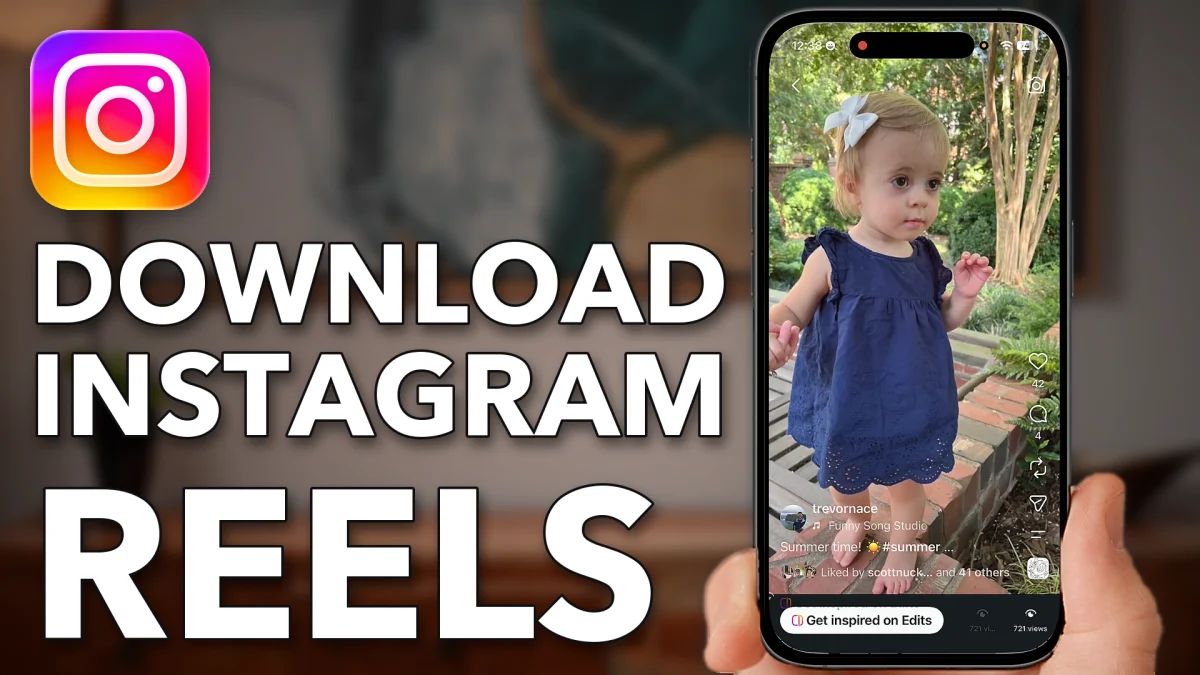
Instagram has its own Download button for reels, for your videos and for other people’s when the creator allows it. It saves the reel straight to your Photos, for personal use only.
Save any reel to your iPhone
Everything here uses the Download button built into Instagram’s share menu, so there is nothing else to install.
1. Download one of your own reels
Open Instagram and tap your profile button at the bottom right. Scroll down and tap the video you want. Tap the paper airplane icon at the bottom right, swipe along the row of buttons at the bottom and tap Download. Instagram notes that downloaded reels can’t be used commercially. Your own video is yours to use.
2. Download someone else’s reel
Tap the Reels icon at the bottom and find the reel you want. Tap the paper airplane icon at the bottom right, swipe along the bottom row and tap Download. You see the same note that it can’t be used for commercial purposes, and the reel downloads to your phone.
3. Find it in Photos
Leave Instagram and open the Photos app. The downloaded reel is there with your other videos. It carries a watermark with the Instagram logo and the name of the creator who made it.
- Tap
 Profile
- Your Reel
- Video
 Share
Share Download
 Reels
Reels- Share
- Download
 Photos
- Downloaded Reel
Why some reels won’t save
If you tap the paper airplane and there is no Download button anywhere in the menu, the creator has most likely turned downloads off for that video. Each creator decides whether their reels can be downloaded.
Even when a creator does allow it, a downloaded reel is for personal use only. It is not your video, and it belongs to its copyright owner.
- Tap
- Share
Watch this on YouTube and ask your question in the comments.