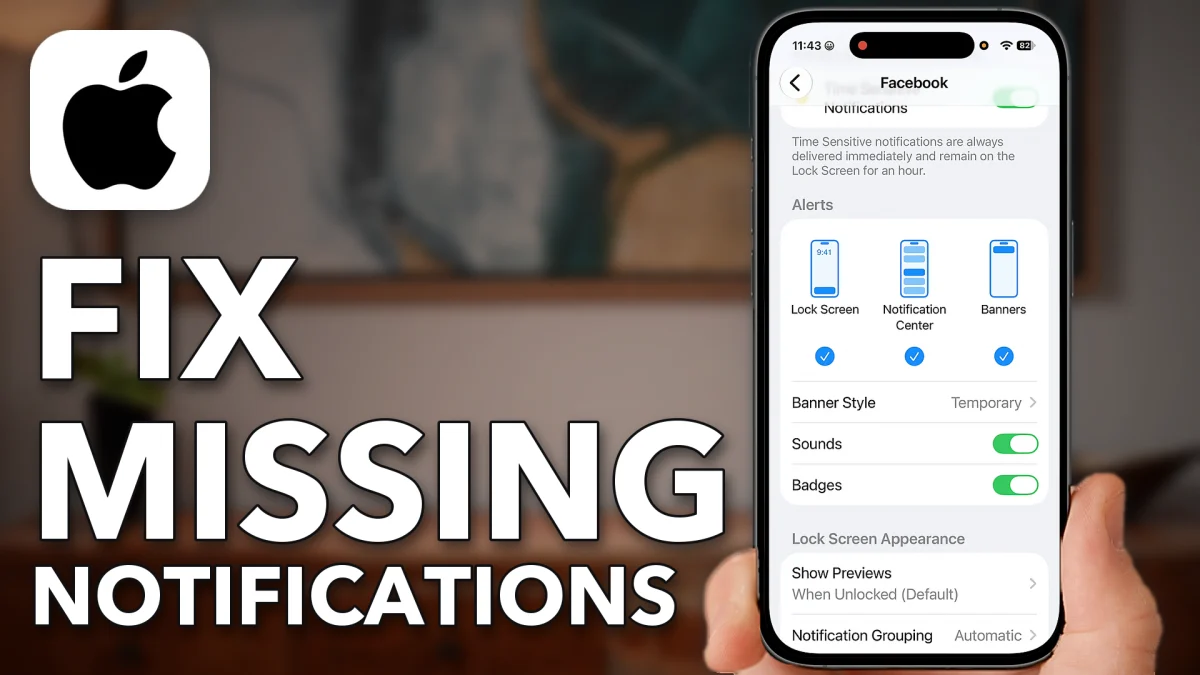
When notifications stop showing up, something on the iPhone is usually holding them back: a Focus, a summary that bundles them for later, or an app that is not allowed to alert you. Work through these settings and alerts arrive the moment they are sent.
Stop your iPhone delaying alerts
These three settings hold notifications back for every app at once, so check them first.
1. Turn off Do Not Disturb
Swipe down from the top right corner to open Control Center and tap the Focus button. If Do Not Disturb is on, it is highlighted in white and the little moon icon is lit. Tap it to turn it off.
2. Turn off Scheduled Summary
Open Settings, scroll down and tap Notifications, then Scheduled Summary, and switch it off. A scheduled summary saves your notifications to deliver later instead of the moment you get them.
3. Turn off Summarize Notifications
Go back to Notifications, scroll down, tap Summarize Notifications and switch it off too, so each notification shows up as soon as it arrives.
- Tap
 Focus
Focus Do Not Disturb
 Do Not Disturb
 YouTube
 Settings
 Notifications
- Scheduled Summary
- Scheduled Summary
- Summarize Notifications
- Summarize Notifications
Let your app notify you
Next, make sure the app you are missing notifications from is allowed to send them, and that they show where you will see them.
1. Choose how notifications display
Go back to the top of the Notifications screen. Under Display As, choose Stack or List.
2. Turn on the app’s notifications
Scroll down and tap the app you are having trouble with. The video uses Facebook as the example. Switch on Allow Notifications, then make sure all three alerts are on: Lock Screen, Notification Center and Banners. If any of them is off, tap it to turn it on.
3. Show previews
On the same app screen, tap Show Previews and set it to When Unlocked or Always, not Never. Then go back to the top of the main Notifications screen, tap Show Previews there and set it to When Unlocked or Always as well.
- Tap
 Stack
Stack List
List Facebook
- Allow Notifications
 Lock Screen
- Notification Center
- Banners
- Show Previews
- When Unlocked
- Show Previews
- When Unlocked
Unblock your notifications
Two last things can still block notifications: Low Power Mode, and a glitch that only a restart clears.
1. Turn off Low Power Mode
Go back to the main Settings list, tap Battery, then Power Mode at the bottom. If Low Power Mode is on, it can stop notifications from coming through. Switch it off.
- Tap
 Battery
- Power Mode
- Low Power Mode
- Low Power Mode
2. Force restart your iPhone
Leave Settings. Press and release volume up, press and release volume down, then press and hold the side button until you see the Apple logo. The phone restarts, and your notifications should come through again.
Watch this on YouTube and ask your question in the comments.