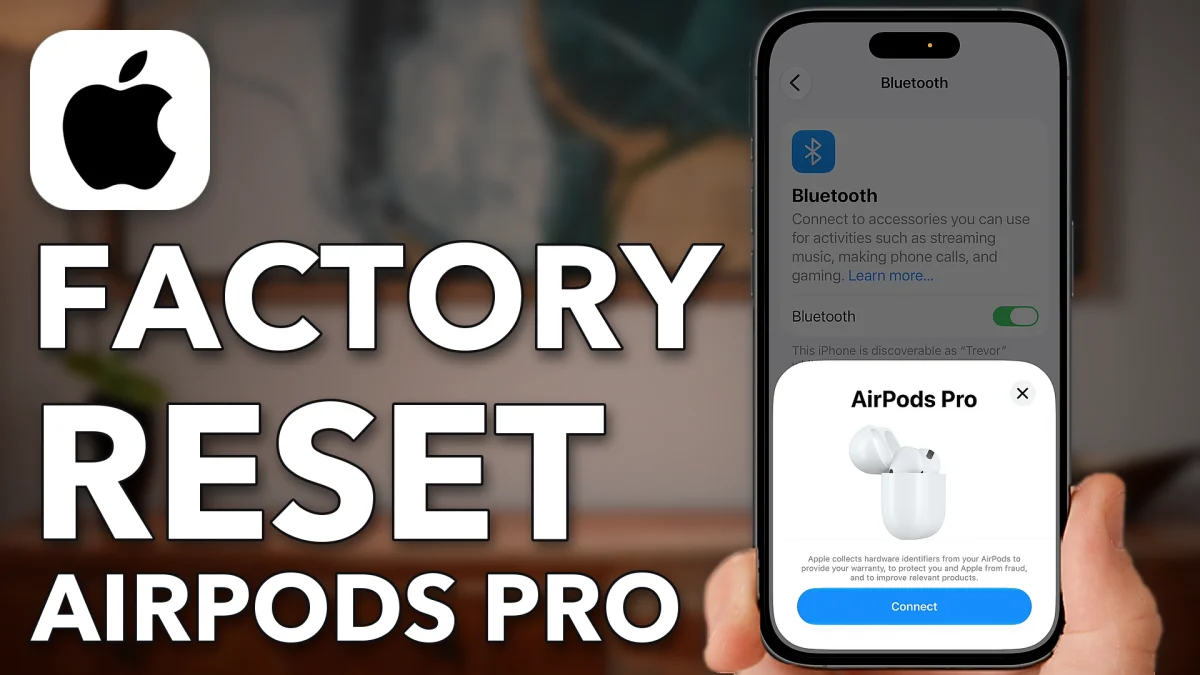
A factory reset wipes your AirPods Pro back to new, so they pair with any iPhone as a fresh set. Remove them from your iPhone first, then hold the button on the case until the light turns amber.
Unpair your AirPods first
If these AirPods have been connected to your iPhone before, remove them from it first, so the phone doesn’t hold on to the old pairing. If they have never been connected to this iPhone, skip to the next section.
Open Settings and tap Bluetooth. Find your AirPods and tap the info button (the small i) next to them. Tap Forget This Device, then confirm with Forget Device. The AirPods are now removed from your iPhone.
- Tap
 Bluetooth
 Your AirPods Pro
- Forget This Device
- Forget Device
- Forget Device
Reset AirPods like new
The reset itself happens on the AirPods case, not the phone.
1. Put both AirPods in the case
Open the case, make sure both AirPods are sitting in it, then close the lid.
2. Hold the button on the back
Find the small white button on the back of the case and press and hold it. The light on the case starts blinking white. Keep holding: after a few seconds it switches to blinking amber, which means the factory reset is done. On some cases you may need to lift the lid for this to work.
3. Connect them again
Once it has finished blinking amber, close the case, then open it again near your iPhone. The AirPods pop up on screen as a brand new pair. Tap Connect and they pair as freshly reset AirPods.
- Tap
- Connect
Watch this on YouTube and ask your question in the comments.