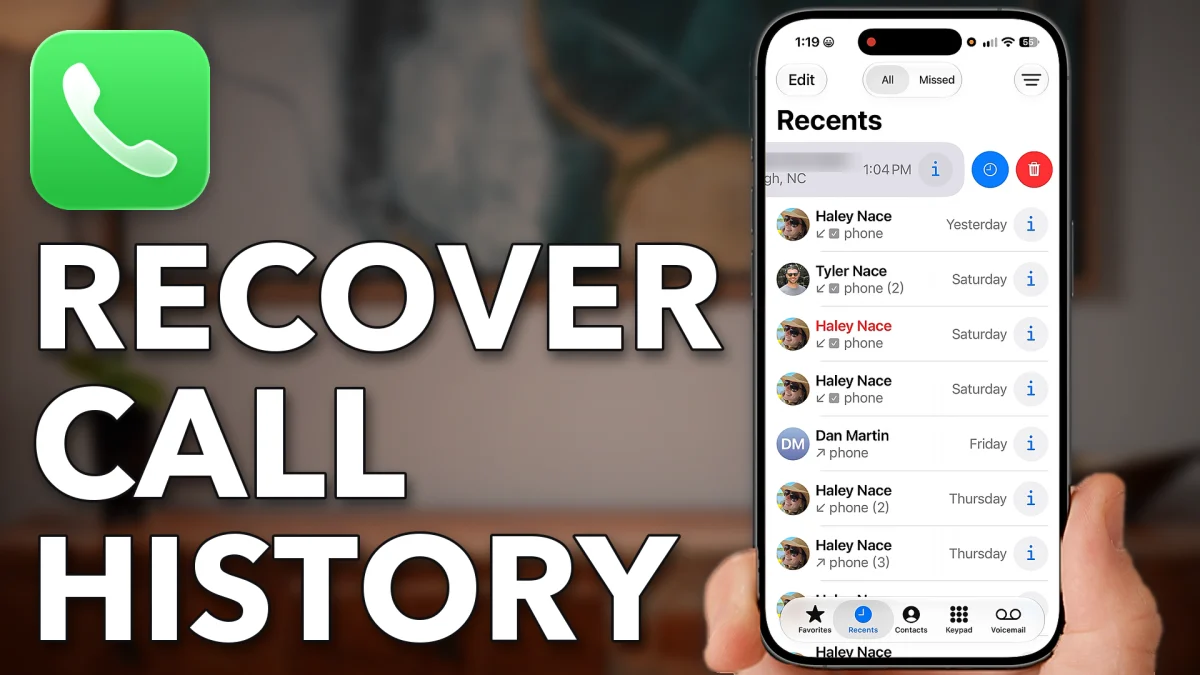
Swipe left on a call in the Phone app and tap the trash can, and it is gone from your iPhone’s history. There are still two places to get it back: another Apple device that has not synced the deletion yet, and your carrier’s call logs.
Keep the calls from syncing
Do this first. iCloud syncs your call list across your devices, so it can replace the history on them with your updated list, the one with the calls deleted. Turning the sync off stops that.
Open Settings, tap your name at the top, then iCloud. Tap See All next to Saved to iCloud, scroll down to Phone & FaceTime and switch it off.
- Tap
 Settings
 Your name
 iCloud
- See All
 Phone & FaceTime
Find the calls still saved
Now check which of your other devices get your iPhone calls. Tap back three times to the main Settings list, scroll to the bottom and tap Apps. Scroll down, tap Phone, then scroll down again and tap Calls on Other Devices.
- Tap
 Apps
Apps Phone
Phone- Calls on Other Devices
The list shows the devices allowed to take your calls, such as a Mac or an iPad. Open each one and look for the deleted calls. Because iCloud sync is now off, those devices will not be updated with the deletion, so the history may still be there.
One more place to look
If the calls are not on another device, or you don’t have another Apple device, go to your carrier. Deleting a call on your iPhone does not delete it from your carrier’s records.
Open a web browser, type your carrier’s name followed by call logs, and tap Go. The results show where your carrier keeps them. On AT&T, for example, it is the usage center: select All Details, then Talk. You get an itemized list of every incoming and outgoing call, with the phone numbers and the exact times.
- Tap
 Safari
- Search
- att call logs
- AT&T call history
Watch this on YouTube and ask your question in the comments.