Your iPhone can scan a paper document into a PDF with the apps already on it, no third-party app needed. The scan is taken the moment the page is in frame, you can fix the corners by hand, and the file is ready to email, text or print. This post walks through scanning in the Notes app, scanning straight into the Files app, and finding the PDF again later.
Scan With The Notes App
The Notes app scans a document into a new note, and from there you can share it anywhere.
Create a new note
Open the Notes app and tap the pencil and paper icon at the bottom right to start a new note. You do not need any third-party app for this, only the built-in ones.
Tap Scan Documents
Tap the paper clip icon just above the keyboard, right over the U key, then tap Scan Documents at the top. Your camera opens straight away.
Line up the document
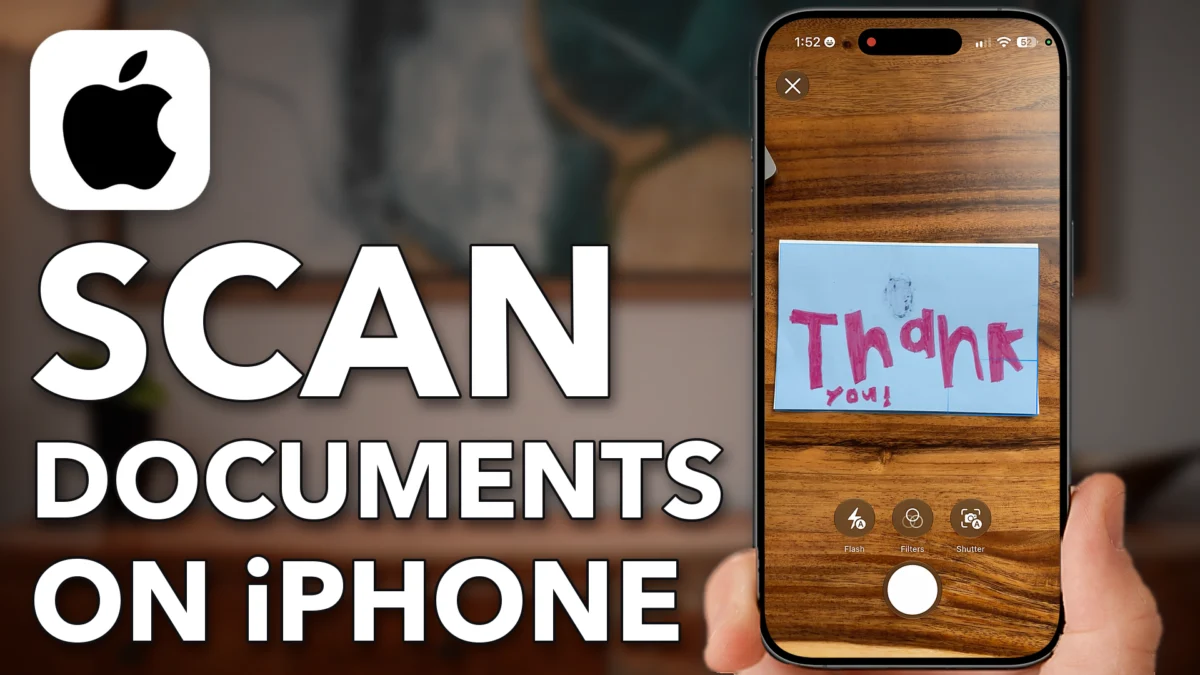
Position the page in the frame, in my case a thank-you card. As soon as it is lined up the camera takes the scanned photo on its own.
Tap Adjust to fix the corners
Tap the scanned photo at the bottom left, then tap Adjust at the bottom left. If it did not find the corners well, drag them into place with your finger, then tap the check mark at the top right.
Save the scan into the note
Tap the back button at the top left, then tap the check mark at the top right. The note now shows the scans it put together, two in my case.
Share the scan
Tap the drop-down arrow next to Scan Document, then tap Share. From here you can email it, text it, or save it to the Files app.
- Tap
 New Note
 Paper Clip
 Scan Documents
 Scan Photo
- Adjust
 Done
Done Save
Save Drop Down Arrow
 Share
Share
Scan With The Files App
The Files app scans straight into a folder on your iPhone, so you skip the note altogether.
Open the Files app
Go back to the Home Screen, swipe down, type Files and tap the Files app. To save straight onto your iPhone, tap Browse at the bottom right.
Tap Scan Documents
Tap the three dots at the top right, then tap Scan Documents. The camera pops up, just like before.
Scan the page
Put the thank-you card in the frame and it scans on its own. Tap the scan if you want to edit it: you can rotate it, add a filter, or tap Retake at the top right.
Save it to Downloads
When you are ready, tap the back arrow, then tap the check mark. It asks where to save: I tap the back arrow, tap On My iPhone, tap Downloads, then tap Save.
- Tap
 Files
Files Browse
 More
More- Scan Documents
 Thank You Card
 Save
Save On My iPhone
 Downloads
 Save
Save
Find The PDF Again
Your scan is a PDF sitting in Downloads, and the Files app can send it anywhere from there.
Open Downloads
In the Files app, tap On My iPhone and then tap Downloads. The scanned document is right there.
Check it is a PDF
Press and hold the scanned document and tap Get Info, the little i. The name reads Scanned Document.pdf, so it is a PDF file.
Send it on
From here you can email it, print it, text it, or save it somewhere else.
- Tap
- On My iPhone
- Downloads
 Scanned Document
 Get Info
Watch this on YouTube and ask your question in the comments.