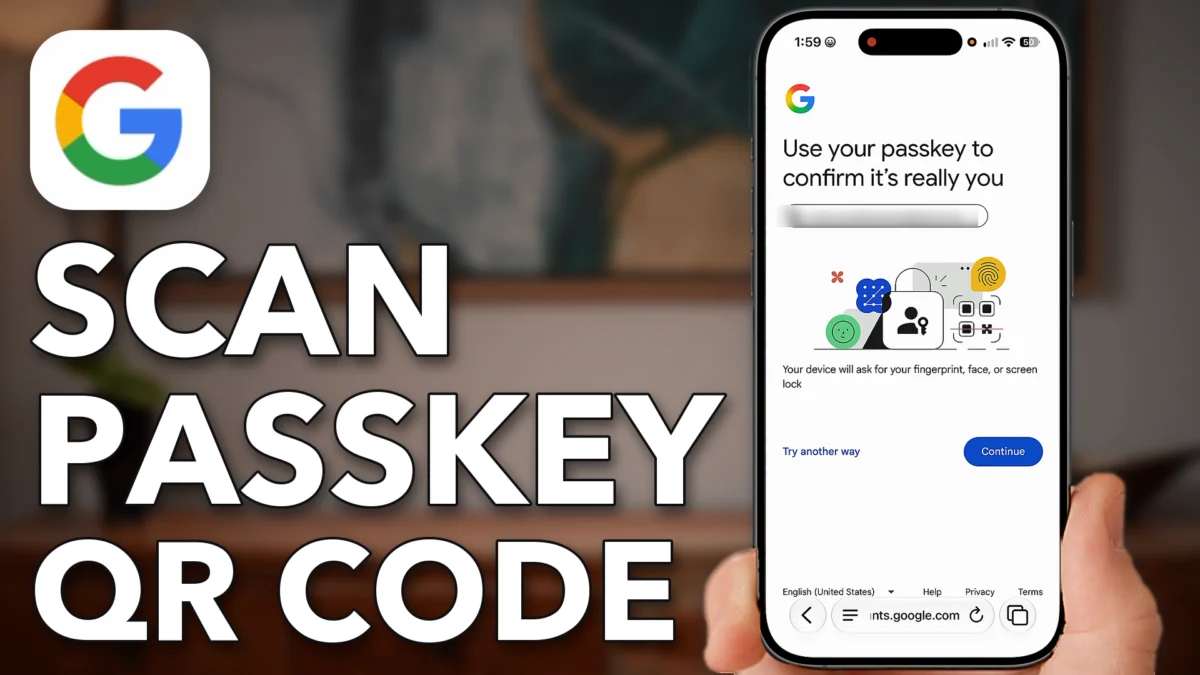
When you sign into a Google account on a phone that has never seen it, Google can show a QR code that you scan from a device where you are already signed in. That gets you in even when the passkey is saved on your old phone and not this one. This post walks through adding a second account in a browser on your iPhone or Android, then working through the Try another way screens until the QR code shows up.
Log Into A Different Account
This part starts the sign-in for a second account and gets you to the screen where Google asks you to prove you own it.
Go to google.com
Open a web browser on your iPhone or Android, Safari in my case, and go to google.com. If you are already signed in, tap your profile picture at the top right.
Tap Add another account
Tap the drop-down arrow at the top right, then tap Add another account. This is where we sign into a different account with the QR code.
Enter the account and tap Next
Instead of using my passkey, I tap Paste to fill in the account and then tap Next. Google now asks you to confirm you own this account.
Look for the passkey prompt
Usually it offers a passkey here if that sign-in is already saved on your iPhone or Android. If it is not, because you are new to this account on this device, you can use a previous device instead, which is what the next part covers.
- Tap
 Safari
 Google
 Profile
 Drop Down Arrow
 Add another account
- Paste
- Next
If The Passkey Won’t Work
With no saved passkey on this phone, you keep tapping Try another way until Google offers the QR code for a device where you are already signed in.
Tap Try another way
Tap Try another way at the bottom left, then tap Use your passkey. It may pop up and offer a passkey again, or the QR code.
Tap Try another way again
If that does not work, tap Try another way at the bottom left once more, then tap Try another way on the next screen. Google now lists several options.
Look through the options
In my case it offers the Google Authenticator app, a verification code sent by text message, or Try another way to sign in at the bottom. You are just working through the process; eventually it offers a QR code on another device.
Tap Try another way to sign in
Next it offers a verification code at your email, or adding a backup or recovery email. If the QR code still is not showing, tap Try another way to sign in and keep going through the screens.
Scan the QR code from your other device
At some point it might say you are not able to sign in, but as long as the account is signed in on another device, that device pops up with its camera so you can scan the QR code on your new phone. Once scanned, the new phone logs straight in.
- Tap
- Try another way
 Use your passkey
- Try another way
 Try another way
 Try another way to sign in
 Try another way to sign in
Watch this on YouTube and ask your question in the comments.