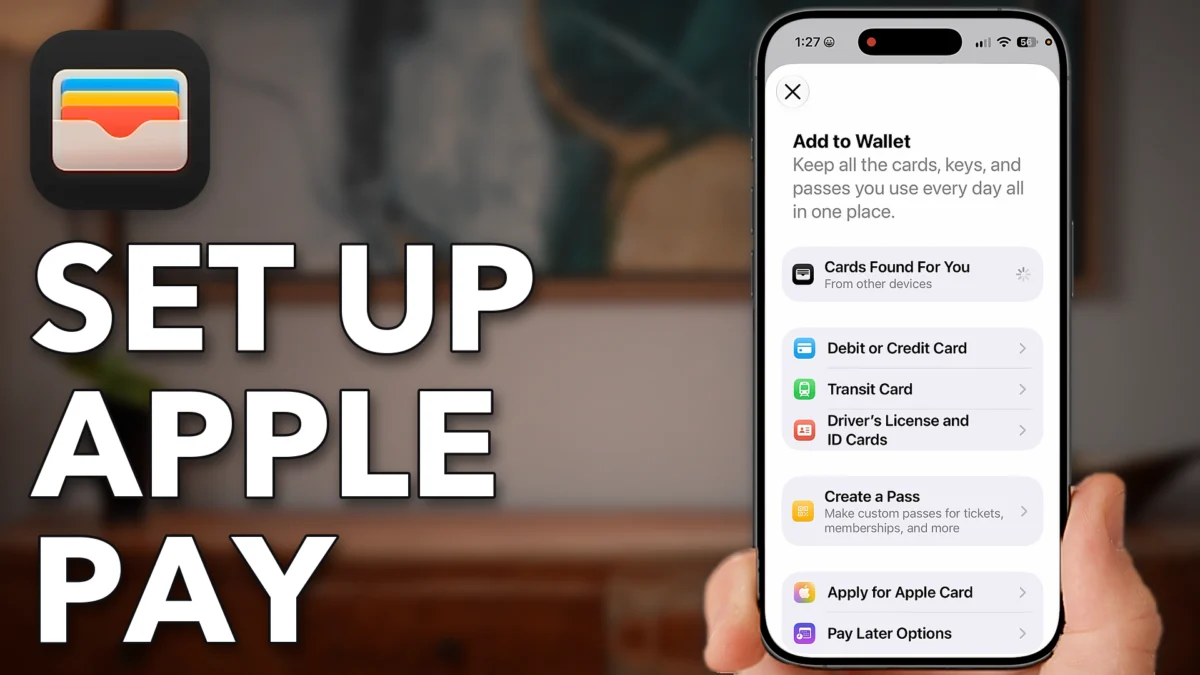
Apple Pay lets you pay with a double click of the side button on your iPhone instead of pulling out a card. Setting it up takes a few minutes, and one setting in the Settings app decides whether the side button actually brings up your cards. This post walks through adding a card to the Wallet app, checking the billing address, and turning on Double-Click Side Button.
Add Your Card To Wallet
You need your iPhone and the credit or debit card you want to set up for Apple Pay. This part scans the card into the Wallet app and verifies it with your bank.
Open the Wallet app
Swipe down on the home screen, type in wallet and tap the Wallet app.
Tap the plus button, then Debit or Credit Card
If you haven’t added a card yet, tap the plus button, tap Debit or Credit Card and tap Continue at the bottom.
Hold the card up to your phone
Hold your debit or credit card up to the top of your phone, where the NFC reader is. You’ll see Contacting the issuer, and it reads the card number, expiration date and CVV on its own, though you can type them in if that doesn’t work.
Tap Agree
Tap Agree at the bottom right and it says Setting up your card for Apple Pay.
Tap Add to Other Devices Later
You can add the card to your other devices here, like an Apple Watch or MacBook, or just tap Add to Other Devices Later at the bottom.
Tap Continue for text message verification
Under text message verification tap Continue and it texts you a code, which fills itself in.
Tap Not Now
Tap Not Now when it asks about the default card, and the card now shows in your Wallet.
- Tap
 Wallet
 Plus Button
 Debit or Credit Card
- Continue
- Agree
- Add to Other Devices Later
- Continue
- Not Now
Check The Billing Address
The billing address on your card needs to be correct. This part checks it in Settings.
Open Settings and tap Wallet & Apple Pay
Hop out to the home screen, open the Settings app on your iPhone, scroll down and tap Wallet & Apple Pay.
Tap your card and check the billing address
Scroll down, tap the card you just added and make sure the billing address at the bottom is correct. If it’s not, tap the billing address and update it.
- Tap
 Settings
 Wallet & Apple Pay
 Fidelity Visa Signature Card
Pay With The Side Button
This is the key setting. With Double-Click Side Button on, two clicks of the side button bring up your cards anywhere you can pay with Apple Pay.
Tap Apple Pay Defaults
Tap the back arrow, scroll up and tap Apple Pay Defaults.
Toggle on Double-Click Side Button
Scroll down and, if it’s off, toggle on Double-Click Side Button at the bottom.
Double click the side button to pay
Anywhere you need to pay with Apple Pay, double click the side button and your cards pop up; if you’ve added more than one, tap the card you want to use. It then tells you to hold the phone next to the NFC reader to pay.
- Tap
 Apple Pay Defaults
- Double-Click Side Button
- Fidelity Card
Watch this on YouTube and ask your question in the comments.