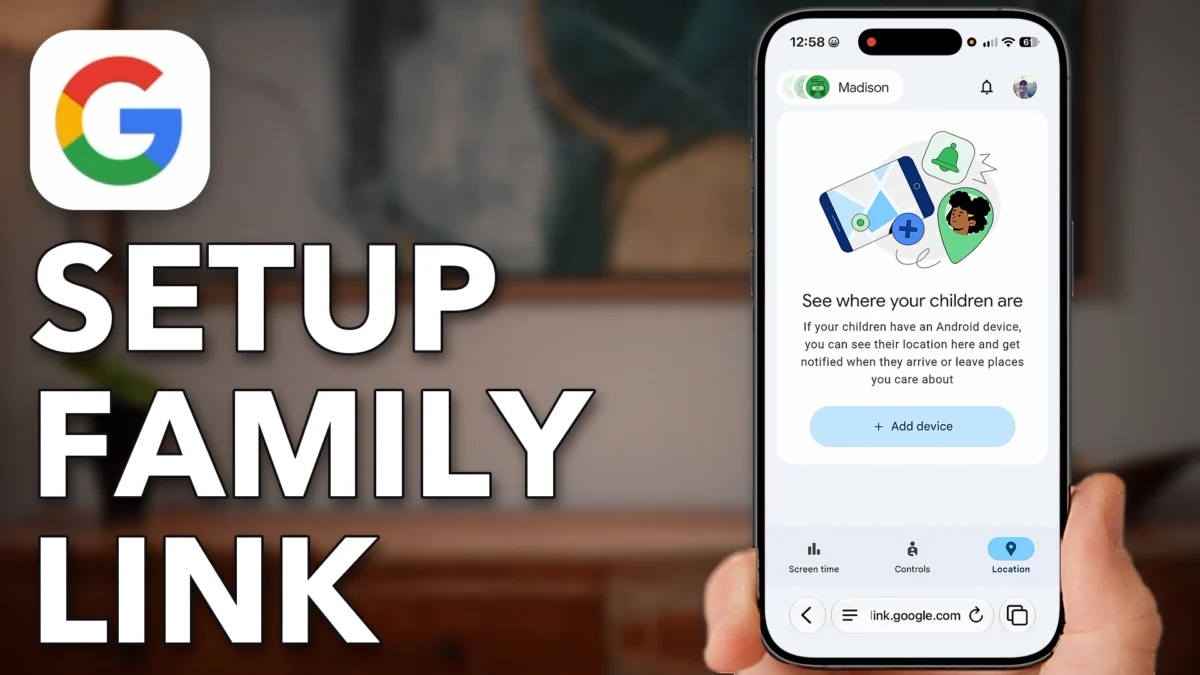
Google Family Link gives you parental controls over your child’s Google account: what they can get to on YouTube, Chrome and Google search, their screen time and their location. You set it all up from your own account on your phone, and the rules follow your child once they sign in on theirs. This post walks through getting into Family Link from a browser on your iPhone or Android, finding your kids list and the parent access code, and setting each control.
Get Into Family Link
You do this on the parent’s Google account, on the parent’s phone. This part gets you from google.com into the Family Link page.
Go to google.com
Open a web browser on your iPhone or Android, it doesn’t matter which, and go to google.com signed in as the parent.
Tap your profile, then Manage your Google Account
Tap your profile at the top right and tap Manage your Google Account at the top.
Search for family
The easiest way in is the search icon at the top. Tap it, type in family and tap Search.
Tap Parental controls
Scroll down and tap Parental controls, under Family Link. It tells you whether you’re supervising anybody, and tapping it brings you over to Google Family Link.
- Tap
 Google
 Profile
 Manage your Google Account
 Search
 Search
 Parental controls
Kids List And Access Code
Family Link is where you set parental controls on what your child’s Google account can do, right from the parent’s iPhone or Android. This part shows the kids list, the parent access code and the family manager.
Tap your child’s name at the top left
Tap your child’s name at the top left to see everybody already added to your Family Link.
Tap Parent access code
Tap Parent access code. You use this code when you want to change the content and apps that are visible or available on your child’s account.
Tap Manage family
Tap the back arrow, tap your child’s name at the top left again, and tap Manage family to manage who is in the family.
- Tap
- [Your child]
 Parent access code
- [Your child]
 Manage family
Set The Child’s Controls
Under your child’s account you set the controls one Google app at a time, then screen time and location.
Tap YouTube
With your child’s account open, scroll down and tap YouTube. Here you control exactly what sort of content the child account can get to on YouTube.
Do the same for the other Google apps
Tap the back arrow and set the same kind of controls for Google Chrome and web searches, Google searches, Gemini, Google Assistant, Google Photos, and finally location sharing.
Tap Screen time
Tap Screen time at the bottom left to set up screen time on your child’s account.
Tap Location
Tap Location at the bottom right to set up location sharing on your child’s account as well.
Sign in on your child’s phone
Once every restriction is set the way you want it in the parent account, sign into your child’s Google or Gmail account on their phone. Everything you set on your phone is then applied on theirs.
- Tap
 YouTube
 Screen time
 Location
Watch this on YouTube and ask your question in the comments.