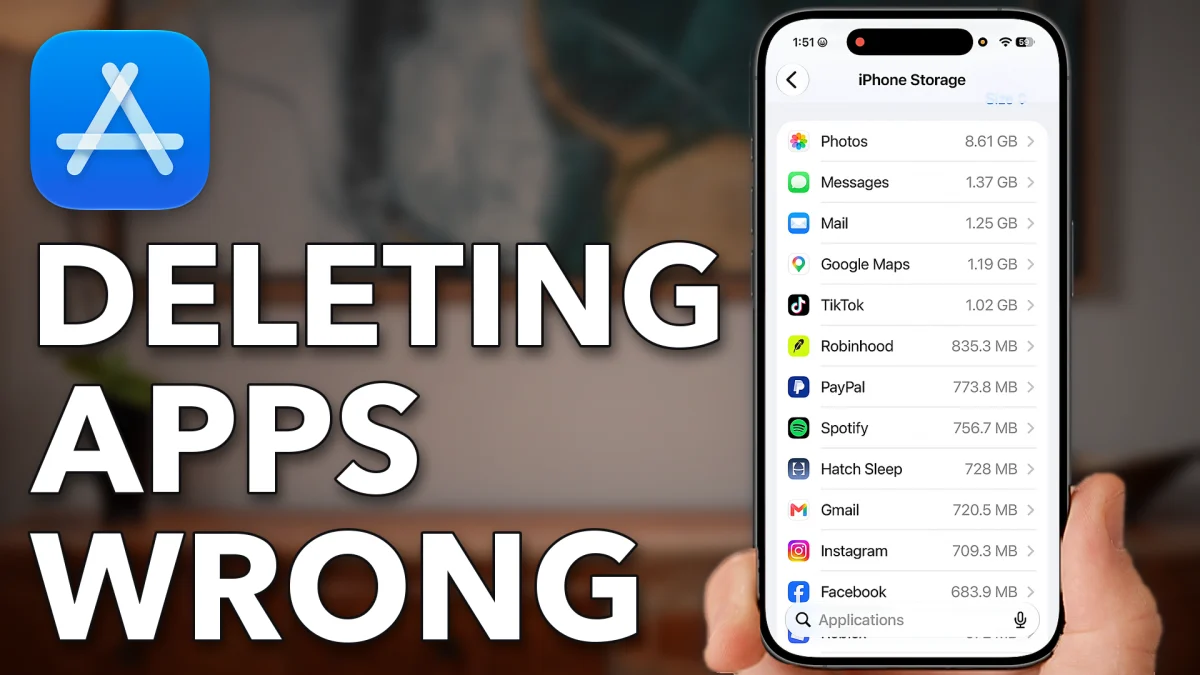
Most people delete an app by pressing and holding it, tapping Remove App, then Delete App. That leaves files behind in two places: the Files app and your iCloud backup. Clear both and the app is truly gone, or offload it instead if you want to keep it.
Clear out leftover files
Many apps keep a folder of their own documents and data on your iPhone. Deleting the app doesn’t always clear that folder, so empty it yourself.
1. Find the app’s folder
Swipe down on the Home Screen, type Files and tap the Files app. Tap Browse at the bottom right, then On My iPhone. You will see folders for a number of different apps; in the video, ParkMobile has one.
2. Delete everything in it
Tap the folder to open it. Tap the three dots at the top right, tap Select, select all of the items, then tap the trash can. That removes all the documents and data the app stored on your iPhone.
- Tap
 Files
Files Browse
 On My iPhone
 ParkMobile
 More
More Select
- Select All
 Delete
Delete the app itself
Now delete the app the usual way. Press and hold on it, tap Remove App, then Delete App, and confirm with Delete. The video uses InShot as the example.
- Tap
 Hold the app
 Remove App
 Delete App
- Delete
 Hold the app
- Remove App
- Delete App
Even after this, the app can still have data stored for it, which is what the next step clears.
Remove its iCloud backup
Your iCloud backup can still hold an app’s data after the app is gone. In the video, InShot still takes up 250 MB there.
1. Open your latest backup
Open Settings and tap your name at the top. Tap iCloud midway down, then iCloud Backup. Scroll down to your most recent backup and tap it; here it is This iPhone.
2. Switch the app off
Scroll down to the app and switch it off, then tap Turn Off. That deletes its data from the backup, so an app you have already deleted isn’t still storing data in iCloud.
- Tap
- Delete
 Settings
 Your name
 iCloud
- iCloud Backup
 This iPhone
 InShot
- Turn Off
Keep the app, free space
If you want to keep an app but still free up space, you don’t have to delete it at all. Offloading removes the app files and keeps your login.
1. Pick the app in iPhone Storage
Go back to the start of Settings, scroll down and tap General, then iPhone Storage. Every app installed on your phone is listed here. Tap the one you want; the video uses TikTok.
2. Offload it
You have two options here. Delete App removes the app and everything associated with it. Offload App, then Offload, removes the app files themselves but keeps your login and some of the app’s information.
3. Reinstall it when you need it
When you want to use the app again, tap Reinstall App. It comes back with its cache and temporary files cleared, the same as deleting and reinstalling it, but you stay logged in and won’t have to sign back in.
- Tap
 General
 iPhone Storage
 TikTok
 Offload App
- Offload
- Reinstall App
This is a good option when you don’t want to go through the full process of deleting an app and all of its data.
Watch this on YouTube and ask your question in the comments.