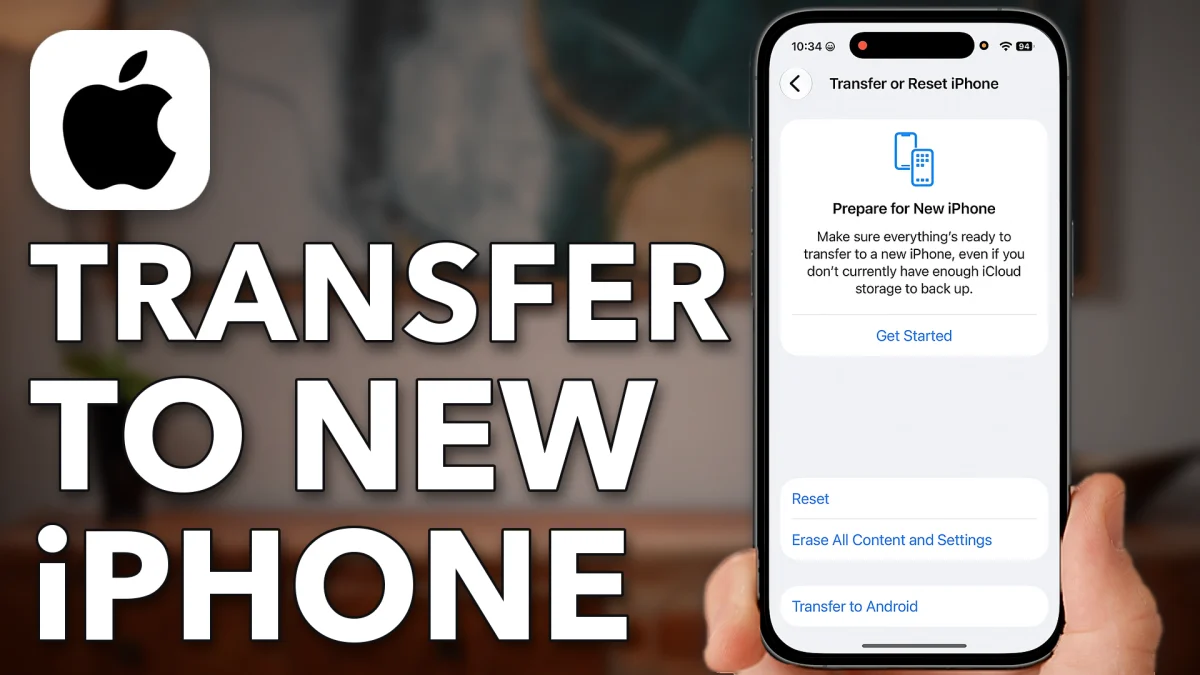
Moving to a new iPhone is three jobs: back up the old phone completely, make sure the new phone is empty, then let Apple copy everything across. Done in that order it takes about twenty minutes, most of it waiting, and nothing is lost.
Get your old iPhone ready
Everything on the new phone comes from a backup of the old one, so the backup has to be fresh and complete. Start on the old iPhone.
1. Back it up to iCloud now
Open Settings, tap your name at the top, then iCloud, then iCloud Backup, and tap Back Up Now. Leave the phone on Wi-Fi and plugged in while it runs.
- Tap
 Settings
 Your name
 iCloud
- iCloud Backup
- Back Up Now
2. Check every app is included
On the same iCloud Backup screen, scroll to the bottom and under All Device Backups tap This iPhone. Tap Show All Apps and make sure every switch in the list is on. Anything switched off here stays behind.
- Tap
 This iPhone
- Show All Apps
3. Wi-Fi and Bluetooth on
Go back to the main Settings list. Tap Wi-Fi and confirm you are connected to a network, then tap Bluetooth and switch it on. The two phones find each other over Bluetooth and copy over Wi-Fi.
- Tap
- Settings
 Wi-Fi
Wi-Fi
- Tap
- Settings
 Bluetooth
- Bluetooth on
Wipe your new iPhone first
The transfer only runs on a phone that is being set up from scratch. If the new iPhone has already been through setup, even just to look at it, erase it first. On the new iPhone:
Open Settings, tap General, scroll to the bottom and tap Transfer or Reset iPhone, then Erase All Content and Settings. Tap Continue, then Delete eSIM and Erase Data. The phone restarts on the Hello screen.
- Tap
- Settings
 General
 Transfer or Reset iPhone
- Erase All Content and Settings
- Continue
- Delete eSIM and Erase Data
If the new phone is still sealed in its box, skip this step; it is already empty.
Two ways to move the data
Turn on the new iPhone and follow the setup screens with the old iPhone next to it. You will be offered two routes; both end with the same result.
Way 1: the cloud of dots (Quick Start)
The new phone shows a swirling pattern of dots, Apple’s version of a QR code, and says Wait for the other iPhone. The old phone pops up a camera window by itself; hold it over the dots. The old phone then sends everything directly to the new one. This is the fastest route and needs no password typing beyond your old passcode.
Way 2: sign in and download the backup
If the dots don’t appear or you would rather not use them, finish setup on the new phone, then open Settings and tap Sign in to your iPhone at the top. Sign in with your Apple Account. As soon as you do, the phone asks whether to restore your most recent iCloud backup. Say yes, and the backup you made in step 1 downloads onto the new phone: apps, photos, messages, settings, the lot.
- Tap
- Settings
- Sign in to your iPhone
Either way, keep the old phone switched on and nearby until the new one says the transfer is complete, and leave the old phone alone for a day or two before you erase it, in case something needs a second look.
Watch this on YouTube and ask your question in the comments.