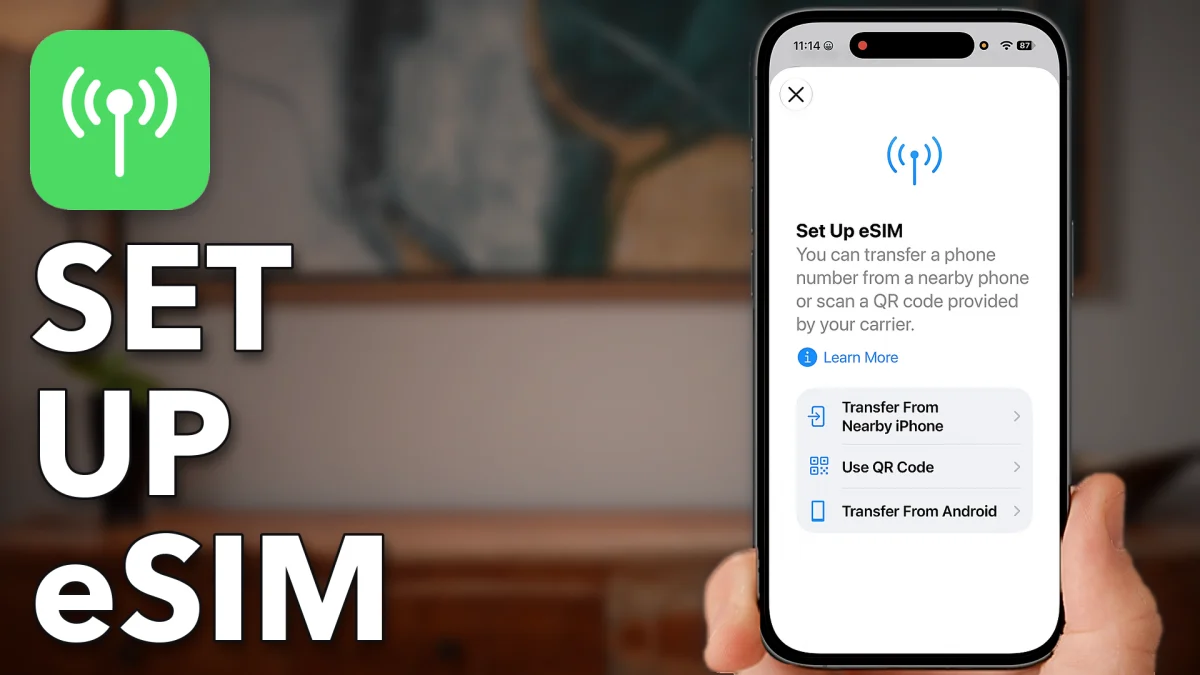
Setting up an eSIM takes a minute once the phone is ready: Wi-Fi on, Bluetooth on, then Add eSIM in Cellular settings. From there you pick one of three ways to bring your line across, depending on what you have.
Get your iPhone ready for eSIM
Do all of this on the new iPhone, the one you want the eSIM on. It needs Wi-Fi to reach your carrier and Bluetooth to find an old phone nearby.
Open Settings, tap Wi-Fi and connect to a network. Go back, tap Bluetooth and switch it on if it is off. Go back again, tap Cellular, scroll down and tap Add eSIM. On some phones it says Set Up Cellular eSIM instead.
- Tap
 Wi-Fi
Wi-Fi Bluetooth
 Bluetooth
- Bluetooth
 Cellular
- Add eSIM
Pick how to add your eSIM
You now get a few ways to transfer the line. Use whichever fits what you have in hand.
Way 1: from your old iPhone
Tap Transfer From Nearby iPhone and put your old iPhone next to the new one. The new phone recognizes it and pulls the eSIM across from the old one.
Way 2: with your carrier’s QR code
No old iPhone? Go back and tap Use QR Code. Most of the time your carrier gives you one; it says something like Install your eSIM and has a small QR code on it. Tap Scan QR Code and point the camera at it.
If you don’t have a QR code, tap Other Options, then Enter Details Manually, and type in the SM-DP+ address, activation code and confirmation code your carrier gave you. Either way, the phone connects to your carrier, whether that is AT&T, Verizon, T-Mobile or another, and starts activating the line.
Way 3: from an Android phone
Go back to the list of options and tap Transfer From Android, then Continue. The iPhone shows a QR code. Scan it with the camera on your Android phone to connect the two and move the eSIM across.
- Tap
 Transfer From Nearby iPhone
 Use QR Code
- Scan QR Code
- Enter Details Manually
 Transfer From Android
- Continue
Check your new eSIM line
Once the transfer is done, go back to Cellular. Your new line shows up under your carrier’s name, with a Turn This Line On switch. Tap My Number to see the phone number the eSIM is using.
The same screen holds the rest of the line’s settings: Wi-Fi Calling, Calls on Other Devices, Carrier Services and SIM PIN. Tap into any of them to change it, including setting up a SIM PIN, right on your iPhone now that the eSIM is active.
- Tap
- My Number
- SIM PIN
Watch this on YouTube and ask your question in the comments.