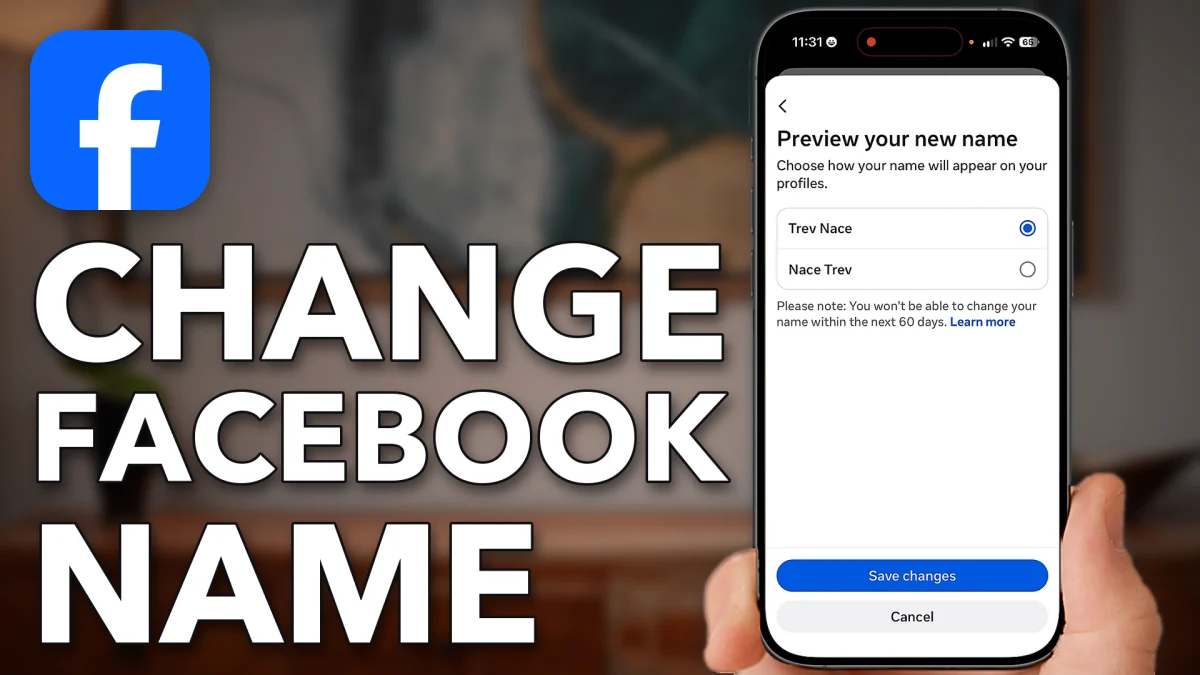
Your Facebook name lives in Accounts Center, a few screens deep in Settings. Getting there takes a minute, but check the new name carefully before you save: once you change it, Facebook won’t let you change it again for 60 days.
Find the name setting
Open the Facebook app on your iPhone or Android and tap your profile picture at the bottom right. Scroll down, tap Settings & privacy, then Settings at the top.
Next tap Accounts Center at the top, then Profiles and personal details, also at the top. Tap your Facebook account in the list, then tap Name at the top.
- Tap
 Menu
Menu Settings & privacy
 Settings
 Accounts Center
- Profiles and personal details
- Your name
Change your name
You will see your first name and last name. Read the note above them: if you change your name, you can’t change it again for 60 days, and Facebook doesn’t allow unusual capitalization, punctuation or characters.
Type the new name and tap Review change at the bottom. The next screen shows a preview of how the new name will look. Because of the 60-day wait, make sure it is exactly what you want, then tap Save changes at the bottom, and your name is updated.
- Tap
- Name
- First name
- Review change
- Save changes
Watch this on YouTube and ask your question in the comments.