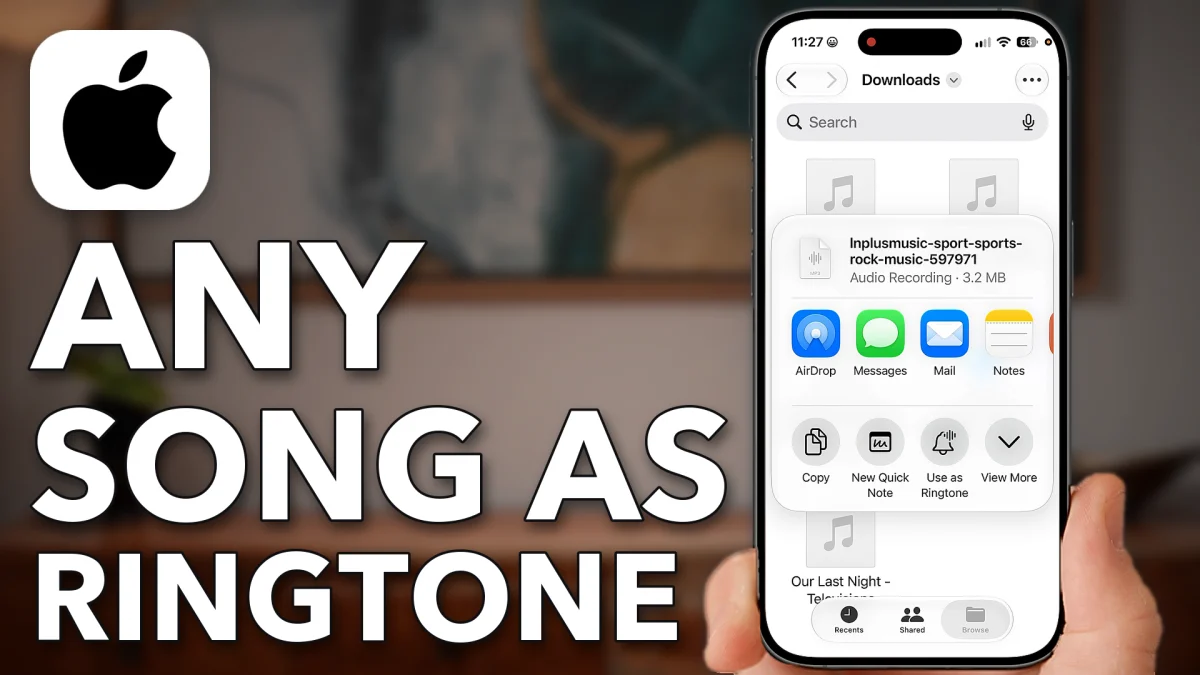
Your iPhone can turn a song into a ringtone with no computer and no paid app, as long as the file is under 30 seconds. Get a song you have the right to use, trim it in your web browser, then set it from the Files app.
Get the song you want
Start with a song you have the right to use, such as royalty-free music. Pixabay has free songs you can download straight to your phone.
1. Download a song from Pixabay
Open a web browser on your iPhone and go to pixabay.com. Swipe across the menu and tap Music, scroll to a song you like and tap its download button, then tap Download to confirm. The song saves to your phone’s Downloads folder.
2. If your file is a video
You can also start from a video with the song in it, as long as it is one you have the right to use. A ringtone has to be audio, so the video needs converting to MP3 first. Open a new tab and search video to mp3 online; an online converter does it without installing an app. If you already have an MP3, as in the video, skip this step.
- Tap
- Search
- pixabay.com
- Music
 Download
- Download
- Download
- New Tab
- Search
- video to mp3 online
Fit the 30 second limit
This is the step that makes it work. A ringtone has to be under 30 seconds, and most songs run for minutes, so you trim the song first.
1. Open an online audio trimmer
Open a new tab, search audio trimmer online and tap one of the audio trimmer sites in the results. Tap Choose file, then Browse at the bottom right, On My iPhone and Downloads, and tap the song you want.
2. Trim it to 29 seconds or less
Drag the trim handles with your finger until Final output at the bottom reads 29 seconds or less. Play it back to check you like the part you kept, then tap Export at the bottom.
3. Download the trimmed song
Tap Download to save the trimmed file back to your phone. The button can be a bit buggy, so you may need to tap it a couple of times. You can also tap the drop-down arrow beside it and save to Google Drive or Dropbox instead.
- Tap
- New Tab
- Search
- audio trimmer online
- Clideo
- Choose file
- Choose File
 Browse
 On My iPhone
 Downloads
- Inplusmusic-sport-sports-rock
- Cut from
- Export
 Download
- Download
- Google Drive
Set the song as ringtone
The last step happens in the Files app, where the iPhone can use an audio file as a ringtone directly.
1. Find the trimmed song in Files
Swipe down on the Home Screen, type Files and open the Files app. Tap Browse at the bottom right, then On My iPhone and Downloads. Every song you downloaded is here, including the one you just trimmed. If the trimmed file didn’t download properly, try again or try another trimmer site.
2. Use it as a ringtone
Press and hold the song, tap Share at the top right, then Use as Ringtone. If the phone says File too large. Choose one under 30 seconds, the song is still too long, so go back and trim it. A file under 30 seconds is set as your ringtone straight away, for free.
- Tap
 Files
Files- Browse
 On My iPhone
- Downloads
- Hold the song
 Share
Share- Use as Ringtone
Watch this on YouTube and ask your question in the comments.