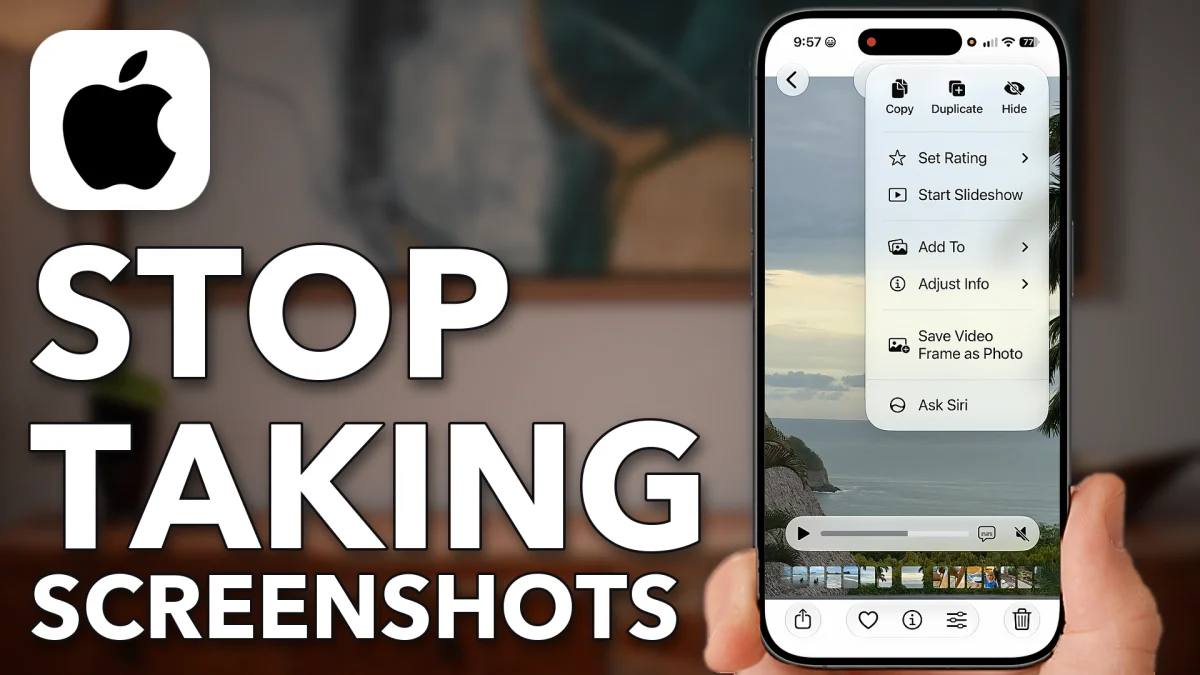
A screenshot of a paused video gives you a small, letterboxed picture: black bars top and bottom and about three megapixels. iOS 27 adds Save Video Frame as Photo to the Photos app, which saves the exact frame at the video’s full resolution, eight megapixels from a 4K clip. Here is where the button lives and how to check the result.
Screenshots Lose Quality
It helps to see the difference on your own phone first, because the two pictures look alike until you read their sizes. Open the Photos app.
1. Check the size of a screenshot
Open a screenshot you took from a video. Notice the black borders at the top and bottom. Tap the Info button (the small i at the bottom) and read the numbers under the picture: a screenshot like this one is 1206 by 2622, about three megapixels, no matter how good the video was.
- Tap
- Screenshot
 Info
Info
2. Compare it with a saved frame
Swipe across to a frame saved with the new iOS 27 button and tap Info again. The same kind of moment now reads eight megapixels, 2160 by 3840, the full resolution of the video, with no borders.
Get A Full Quality Still
Saving a frame takes three taps inside the video itself, and the result lands in your library next to the clip.
1. Pause on the exact moment
Open the video in Photos. Drag your finger along the scrubber at the bottom until you reach the frame you want, then tap Pause.
2. Save the frame as a photo
Tap the three dots (More) at the top right and tap Save Video Frame as Photo. The frame is saved as a new photo straight away.
3. Check the new photo
Swipe out of the video and the new frame sits beside it in your library. Tap Info and it shows eight megapixels, so you are never downgrading the picture when you want a specific moment from a video.
- Tap
- Video
 Pause
Pause More
More Save Video Frame as Photo
- New Frame
- Info
Watch this on YouTube and ask your question in the comments.