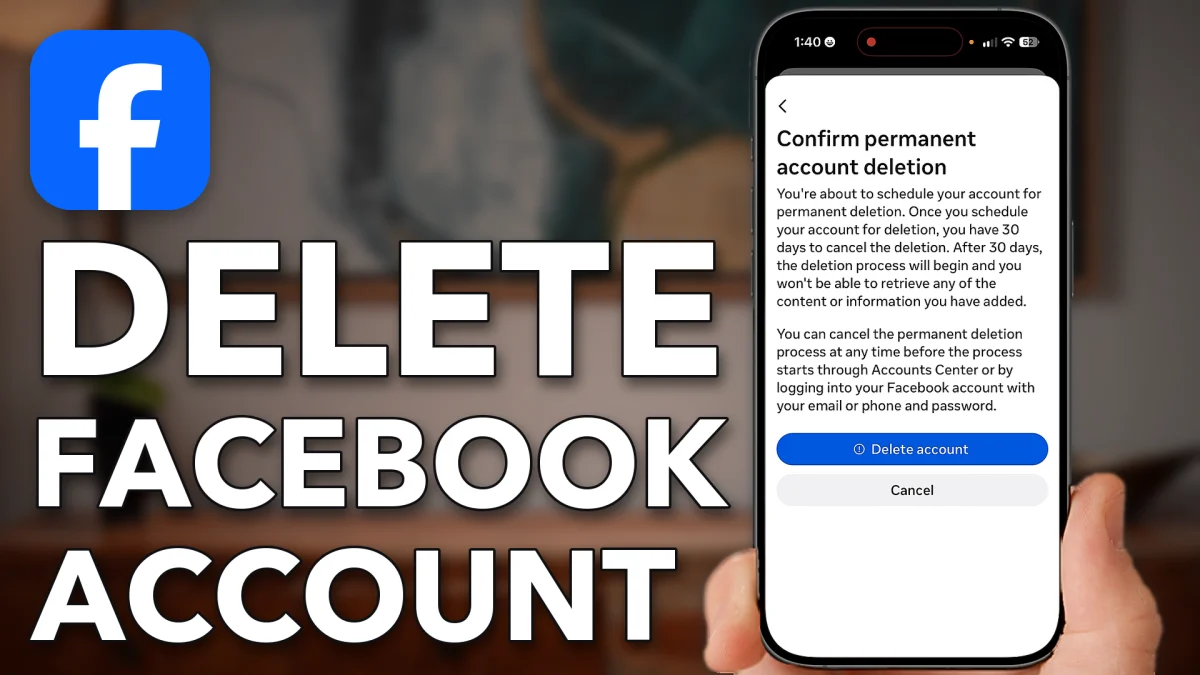
Deleting your Facebook account for good starts in Accounts Center inside the Facebook app. Save anything you want to keep before the last step, because once the 30-day window closes the account is gone.
Find the delete option
The delete option sits a few screens deep in Accounts Center. Open the Facebook app on your iPhone or Android.
Tap Menu at the bottom right; on some phones it is at the top left. Scroll down and tap Settings & privacy, then Settings at the top, then Accounts Center at the top. Scroll down and tap Manage accounts at the bottom. Tap Manage next to your Facebook account, then tap Deactivation or deletion.
- Tap
 Menu
Menu Settings & privacy
 Settings
 Accounts Center
 Manage accounts
- Manage
Confirm the deletion
You get two choices. The first only deactivates the account, so pick the second one.
1. Choose to delete
Tap Delete account, then Continue. Pick a reason for leaving; it doesn’t matter which one you choose. Tap Continue, then Continue again.
2. Save what you want to keep
This screen is important. It is your chance to save your posts, export your information, or change any group admin settings. When you are ready, tap Continue at the bottom.
3. Enter your password
Facebook usually asks for your password here. Tap to AutoFill it, or tap Forgot Password if you don’t remember it. Then tap Continue.
- Tap
 Deactivation or deletion
- Delete account
- Continue
- I don’t feel safe on Facebook
- Continue
- Continue
- Continue
- Password
- Continue
Facebook now gives you 30 days to log back into your account if you change your mind. After that the account is permanently deleted.
Watch this on YouTube and ask your question in the comments.