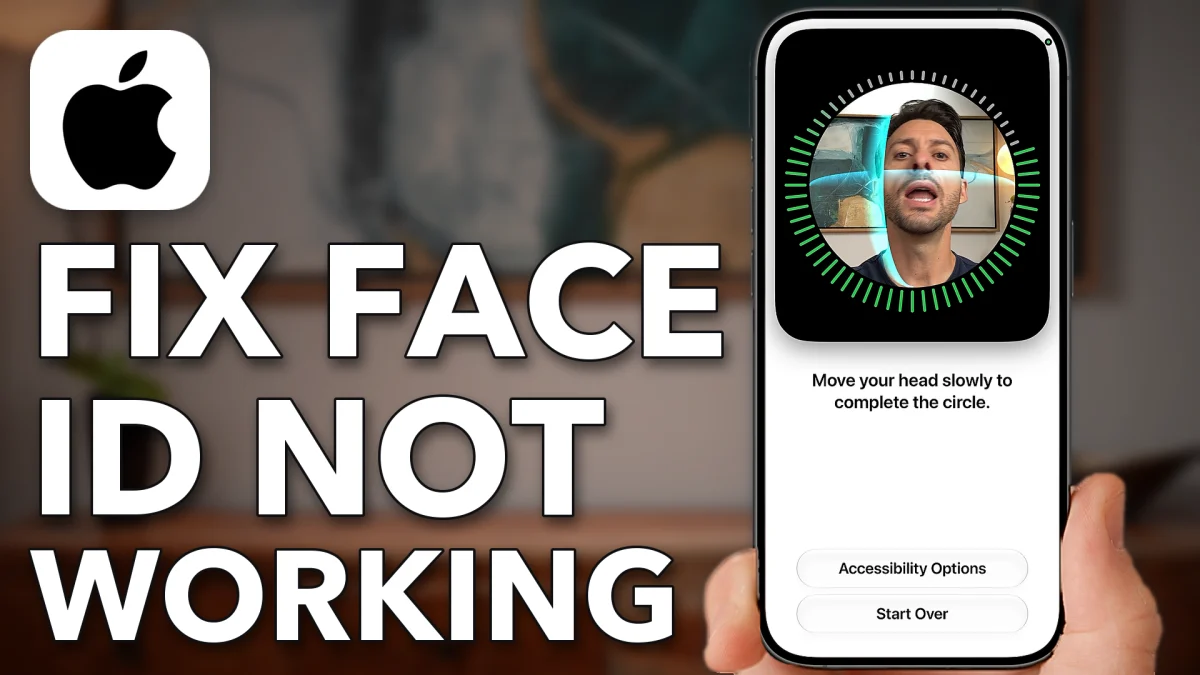
Most Face ID problems come down to a dirty sensor, a switch that is off, or an old face scan. Work through the fixes below in order, from cleaning the sensor to resetting your settings, and stop as soon as Face ID works again.
It sounds silly, but start with a cloth and clean the Face ID sensor at the top of the screen. Smudges can mix it up.
If that doesn’t help, open Settings, scroll down and tap Face ID & Passcode, then enter your passcode. Under Use Face ID For, make sure every switch is on. If iPhone Unlock is off, Face ID may be working fine; it just isn’t set up to unlock your phone.
Face ID not recognizing you
If everything is switched on and Face ID still fails, set it up again. Everybody’s face changes over time, so it helps to redo Face ID every once in a while.
1. Reset Face ID
On the same Face ID & Passcode screen, scroll down and tap Reset Face ID, then tap it again to confirm.
2. Set it up again
Scroll up and tap Set Up Face ID, then Get Started at the bottom. Position your face in the frame and move your head in a circle until the scan finishes.
3. Choose the mask option
If you don’t usually wear a mask, tap Don’t Use Face ID with a Mask. Then tap Done.
- Tap
- iPhone Unlock
- Reset Face ID
- Reset Face ID
- Set Up Face ID
- Get Started
- Don’t Use Face ID with a Mask
- Done
If Face ID still fails
Two bigger fixes are left. Try them in this order.
1. Reset all settings
Tap the back arrow, scroll up and tap General. Scroll to the bottom and tap Transfer or Reset iPhone, then Reset, then Reset All Settings. This puts all of your settings back to their factory defaults, and it almost always fixes Face ID issues.
- Tap
 General
 Transfer or Reset iPhone
- Reset
- Reset All Settings
2. Force restart your iPhone
If you still have trouble, press volume up, press volume down, then press and hold the side button until you see the Apple logo.
Watch this on YouTube and ask your question in the comments.