Sharing photos the usual way means hunting through your library, tapping Share, picking Messages and typing a name. With Siri AI on your iPhone you say what you want, such as the recent orchid photos for your brother, and Siri gathers the photos and sends them, or builds a shared album the whole family can add to.
Share Photos With Family
This is the quickest route: one sentence to Siri and the photos go out in Messages without opening the Photos app at all.
1. Ask Siri for the photos
Press and hold the side button, or say Hey Siri, and ask for what you want to share and who should get it, for example: share the recent orchid photos I have taken with my brother Tyler. Siri searches your library for photos that match.
2. Pick the person and send
If more than one contact fits the name, Siri asks which one; tap the right person. Siri then shows the photos it found. If they look right, tap Send and they go out as a message.
- Tap
- Tyler Nace
 Send
Send
Because Siri recognises what is in the pictures, you do not have to find them yourself. Next time you take more orchid photos, the same request pulls in the new ones too.
Make A Shared Album
If you want an album both of you keep adding to, ask Siri to build the album instead of sending the photos once.
1. Ask Siri to create the album
Call Siri and say something like: create an album of all my orchid photos. Give it a moment to work through your library. When it finishes, a new album named after the subject appears in Photos.
2. Turn it into a shared album
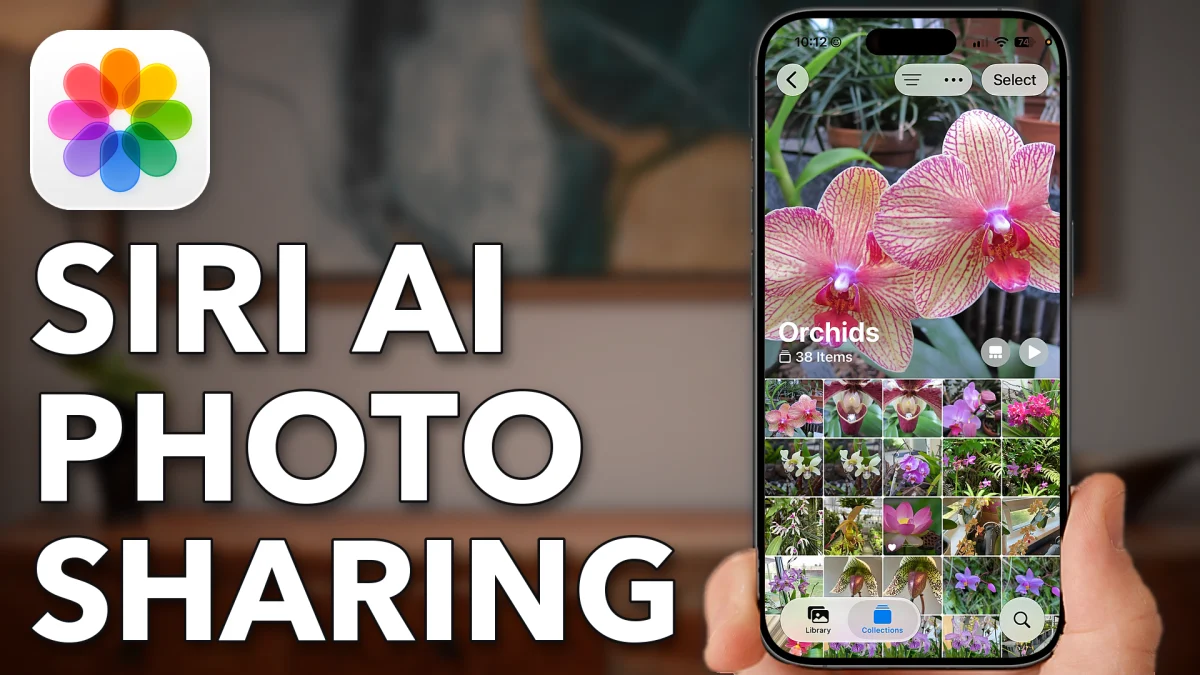
Open Photos and tap the new album, Orchids here. Tap the three dots (More) at the top right, then Create Shared Album, and invite the people you want. Everybody in the album can add their own photos from then on.
- Tap
 Orchids
 More
More Create Shared Album
The same works for any subject Siri can recognise: a beach trip, the trip to Europe, the dog. Press and hold, say what you want gathered and who should see it, and let Siri do the sorting.
Watch this on YouTube and ask your question in the comments.