An iPhone that won’t ring is almost always set to stay quiet somewhere: a Focus, Silent Mode, call screening or a feature that lowers the ringer while you look at the screen. Check these places in order and incoming calls ring out loud again.
Stop your iPhone muting calls
Start with the settings that silence every call at once. If any one of them is on, the phone stays quiet no matter what else you change.
1. Turn off Do Not Disturb
Swipe down from the top right corner to open Control Center and tap the Focus button. If Do Not Disturb is highlighted in white, it is on and your calls are being held back. Tap it to turn it off.
2. Turn off Silent Mode
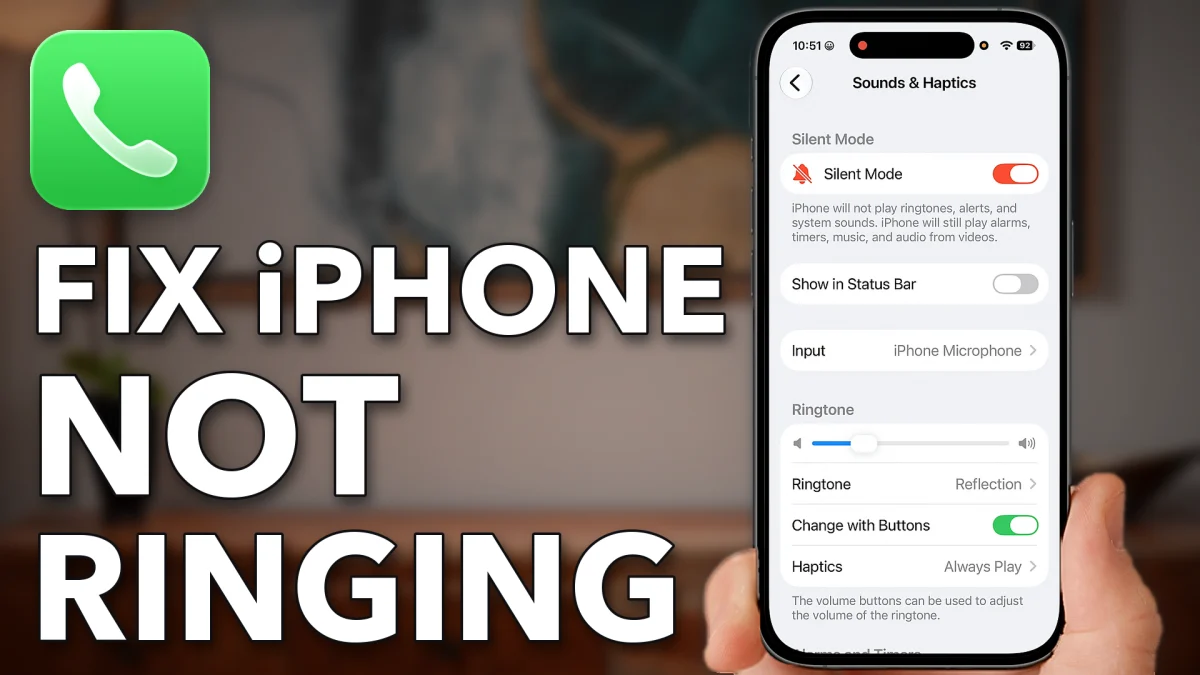
Open Settings, scroll down and tap Sounds & Haptics. If Silent Mode is on, switch it off.
No Silent Mode switch on that screen? Then you have an older iPhone without an Action button. Use the small switch on the side of the phone, just above the volume buttons, and push it towards the front of the screen. That turns Silent Mode off.
3. Turn the ringtone all the way up
On the same Sounds & Haptics screen, scroll down and drag the ringtone volume slider all the way up. Then make sure Change with Buttons is on, and press the volume up button on the side of the phone until the volume is as high as it goes.
- Tap
 Focus
Focus Do Not Disturb
 Do Not Disturb
 Settings
 Sounds & Haptics
 Silent Mode
- Change with Buttons
Let calls reach your iPhone
Next, make sure calls are actually sent to the phone itself and not answered somewhere else or screened out first.
1. Set Call Audio Routing to Automatic
Go back to the main Settings list and tap Accessibility, then Audio & Visual, then Call Audio Routing. If this is set to Bluetooth Headset or Speaker, your calls go to those devices instead of your iPhone. Choose Automatic.
2. Stop the Phone app screening callers
Go back to the main Settings list, scroll to the bottom and tap Apps, then Phone. Scroll down, and under Screen Unknown Callers choose Never. That stops the phone screening calls from numbers you don’t recognize or that aren’t in your contacts.
On the same screen, switch off Unknown Callers and Spam. Now all of those calls ring through to your iPhone.
- Tap
 Accessibility
 Audio & Visual
- Call Audio Routing
- Automatic
 Apps
Apps Phone
Phone- Never
- Unknown Callers
- Spam
Keep your iPhone ringing loudly
There is one last setting, and it catches a lot of people. Go back to the main Settings list, tap Face ID & Passcode and enter the passcode you use to unlock your iPhone.
Scroll down and switch off Attention Aware Features. With it on, your iPhone checks whether you are looking at it before it dims the display and lowers the volume of some alerts. So when the phone is unlocked and you are looking at it, it won’t ring, because it assumes you have already seen the call. Turn it off and it rings every time.
- Tap
 Face ID & Passcode
- Attention Aware Features
Watch this on YouTube and ask your question in the comments.