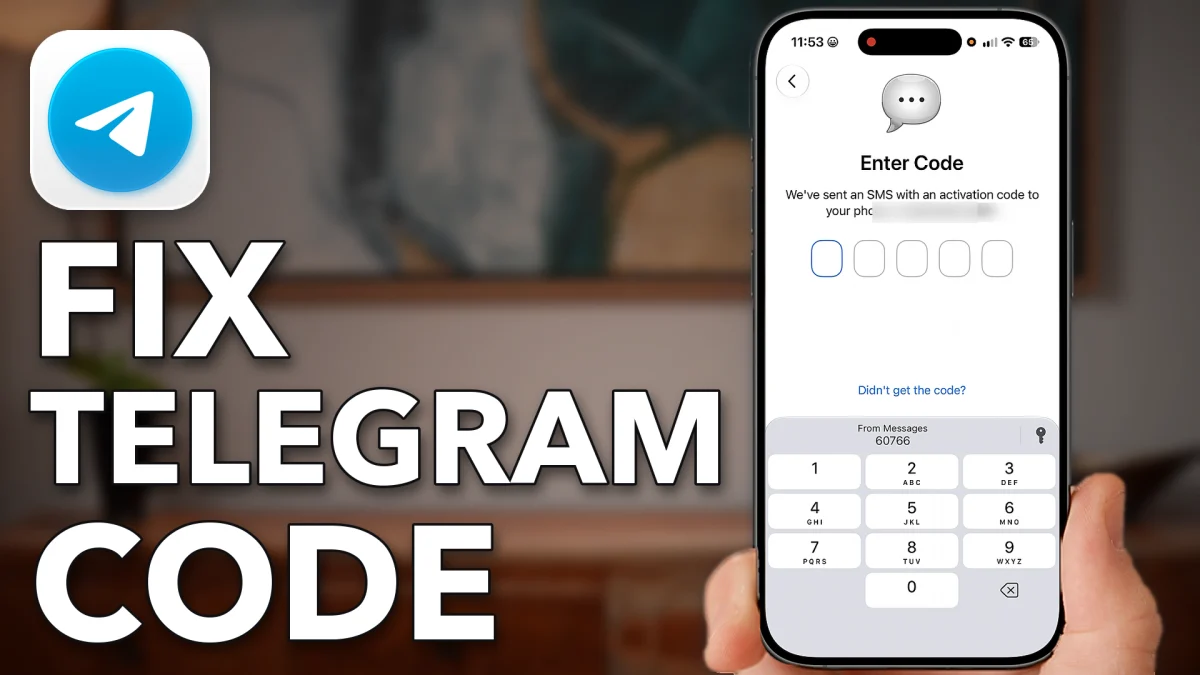
If Telegram’s login code never arrives by text, the fix can be on your iPhone: a Messages setting that needs resetting, or a filter hiding the text out of sight. Work through these in order, and finish with a reconnect and a force restart if the code still won’t come.
Let your phone get the code
Before changing anything, make sure Telegram is texting the right number. Then reset the Messages settings that decide whether the text reaches you.
1. Check the country code and number
Open Telegram and tap the country code. Make sure the right country is selected, then enter your phone number and tap Continue. When it works, the code arrives as a text and appears at the bottom of the screen, from Messages. Tap it to fill it in, enter your password if Telegram asks for it, and tap Continue to log in.
2. Reset Retry as Text Message
If the code doesn’t come, leave Telegram and open the Settings app. Scroll to the bottom and tap Apps, then scroll down and tap Messages. Scroll down to Retry as Text Message, switch it off, then switch it back on.
3. Reset RCS Messaging
Tap RCS Messaging, switch it off, then switch it back on.
4. Turn off Screen Unknown Senders
Tap the back arrow and scroll up to Screen Unknown Senders. Switch it off. The text carrying your code could be screened as an unknown sender, and then you would never see it arrive.
- Tap
 Settings
 Apps
Apps Messages
- Retry as Text Message
- Retry as Text Message
- RCS Messaging
- RCS Messaging
- RCS Messaging
- Screen Unknown Senders
Check for a filtered code
The code may already be on your phone, just filed somewhere you don’t usually look. Still in the Messages settings, tap Filter Spam to switch it off.
Then leave Settings and open the Messages app. Tap the three lines at the top right to see the filters, such as Unread and Recently Deleted, and check each one for the code. Look in Recently Deleted in particular; in the video, messages from other apps were sitting in there too.
- Tap
- Filter Spam
- Messages
 Filters
 Recently Deleted
If the code still won’t come
If it isn’t there either, give the phone a fresh connection and a clean start.
1. Turn Airplane Mode on and off
Go back into the Settings app and tap the back arrow until you reach the main list. Scroll to the top and switch Airplane Mode on to disconnect from your cellular network, then switch it off again so the phone reconnects.
- Tap
- Settings
 Airplane Mode
- Airplane Mode
2. Close all your apps
Close every app you have open, Telegram and Messages included.
3. Force restart your iPhone
Press volume up, press volume down, then press and hold the side button until you see the Apple logo. Once the phone is back on, the Telegram code should come through.
Watch this on YouTube and ask your question in the comments.