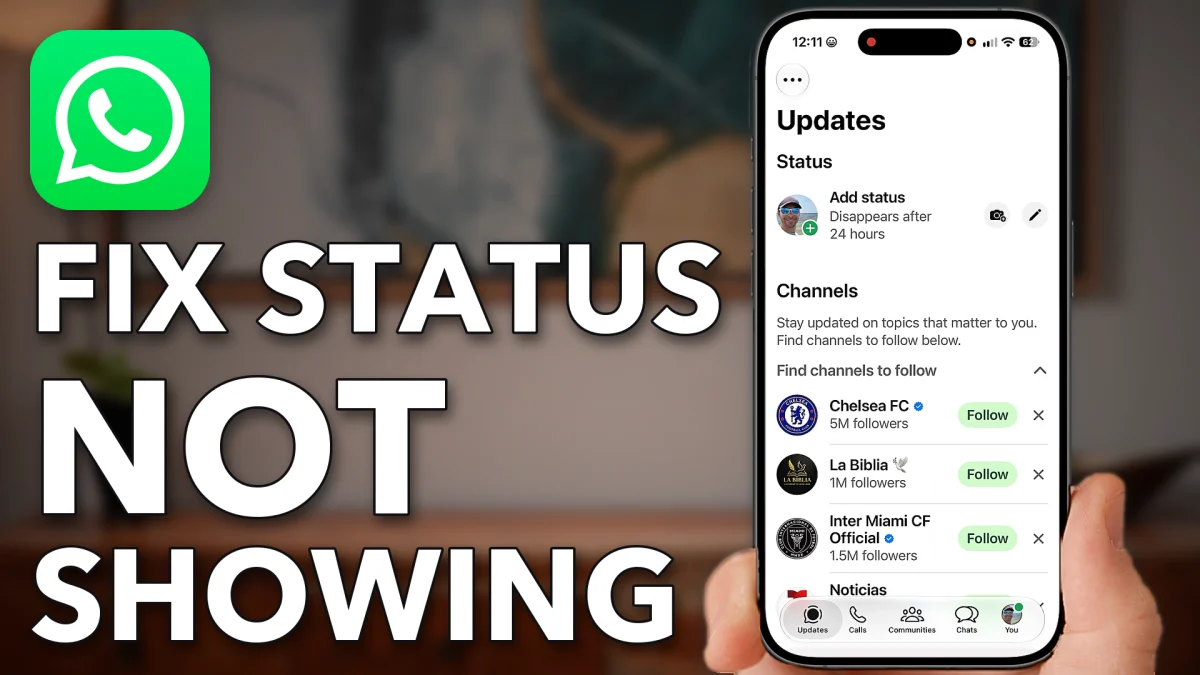
When statuses stop showing in WhatsApp, the fix is usually a fresh copy of the app. Start by offloading and reinstalling it, which clears the cache and forces an update. If that is not enough, back up your chats and reinstall WhatsApp from scratch.
Clear WhatsApp’s cache
Offloading and reinstalling WhatsApp clears its cache and cookies and forces an update to the latest version. A lot of the time that alone fixes problems with statuses.
1. Close WhatsApp
If WhatsApp is open, close out of it first.
2. Offload and reinstall the app
Open Settings, tap General, then iPhone Storage. Scroll down and tap WhatsApp. Tap Offload App, then tap Offload App again to confirm. When it finishes, tap Reinstall App. On an Android phone, search Settings for WhatsApp instead.
- Tap
 Settings
 General
 iPhone Storage
 WhatsApp
 Offload App
- Offload App
If statuses still won’t show
Open WhatsApp again and tap Updates to see if the statuses appear. If they don’t, the next step is a full delete and reinstall. Back up your chats first, because deleting the app removes them from the phone.
1. Back up your chats
Tap You at the bottom right. Scroll down and tap Chats, then Chat Backup, then Back Up Now. Wait until the whole backup finishes before you go on.
2. Delete WhatsApp
Go to your Home Screen and press and hold the WhatsApp icon. Tap Remove App, then Delete App.
- Tap
- Reinstall App
- WhatsApp
 You
You Chats
Chats Chat backup
- Back up now
- Hold WhatsApp
 Remove App
 Delete App
3. Reinstall it
Download WhatsApp again from the App Store or the Google Play Store. It installs fresh, and your statuses should start showing up.
Watch this on YouTube and ask your question in the comments.